Guide for iPhone
To enable Google 2FA on your iPhone device, you will need to download the Gmail app from the App Store. We recommend this over the native iPhone mail app in general for user features and security.

How to Install Gmail App
Once the app is installed and your account has been added, tap on the hamburger icon in the upper left. This will open the side bar. Scroll down and select “settings”. Select your account at the top, and tap on “Your info, privacy, and security”. This will take you to your Google account settings.
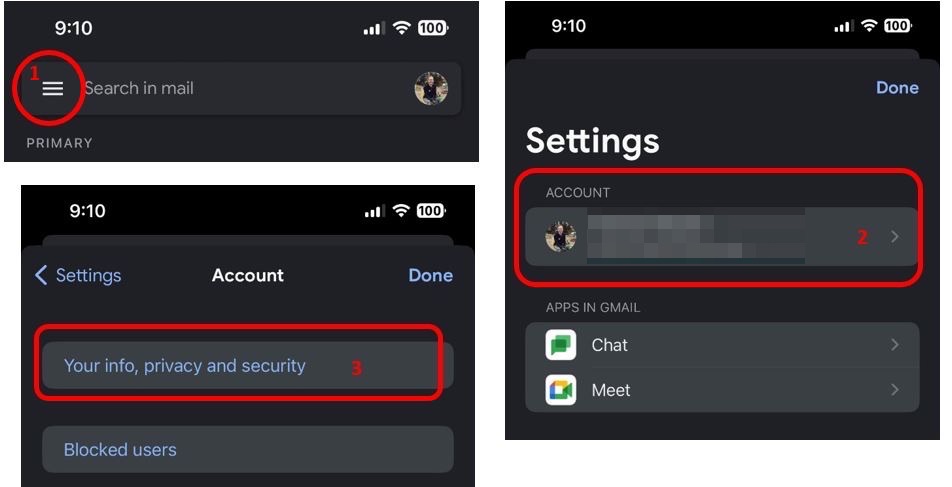
From there, tap on the Security tab. There it will show you recommended settings and other information about your account, devices, etc.
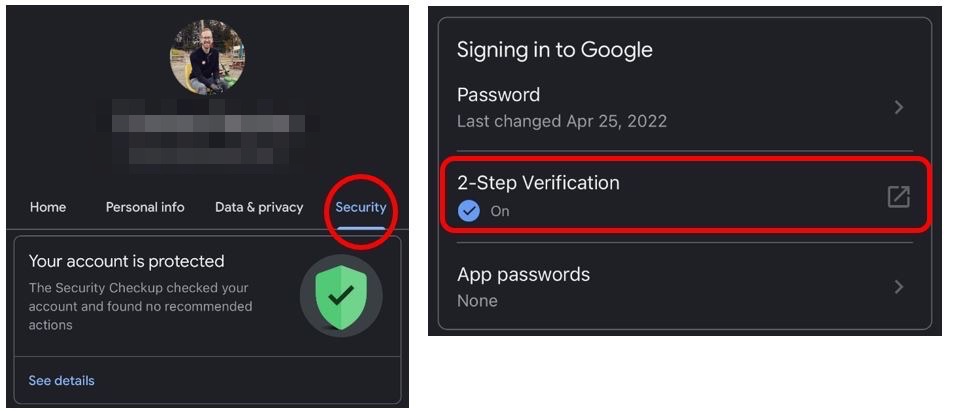
Scroll down to “Signing in to Google”, you will see a sub-selection that says “2-Step Authentication”. If it’s on already, you’re all set. If not, tap on it and it will take you to the 2FA options.
Here are the options it gives you for 2FA:
- Google Prompts– This will send you a push notification to the Gmail (or other Google app) to confirm the person logging into your account is you. For those of you with VPN access this is similar to the way Duo Mobile has you approve authentication. This is the default option Google recommends. (NOTE: This may not be available if you do not have other Google apps on your device, if this is the case, it will default to the Voice or Text Message option below)
- Voice or Text Message – You can have an SMS message with a code sent to your phone, or you can receive a phone call confirming authentication.
Once you have selected your preferred method, 2FA will be enabled, and you will be all set. You may need to close and open the app to verify. You will get a confirmation email to your Ramapo Gmail account stating that 2FA is active, as well as a Google Security Alert email indicating that a new device has logged into your account.
If you require any assistance setting up 2FA, please reach out to the Ramapo ITS Help Desk by phone at 201-684-7777, by email at helpdesk@ramapo.edu, or in person on the 4th floor of the Learning Commons.
Guide for Android Devices
To enable Google 2FA on your Android device, you will need to download the Gmail app from the Google Play Store. We recommend this over the native Android mail app in general for user features and security.

How to Install Gmail App
From the main inbox screen, tap on the hamburger icon in the upper left. This will open the side bar. Scroll down and select “settings”. Select your account and tap on “Manage your Google Account”. This will take you to your Google account settings.
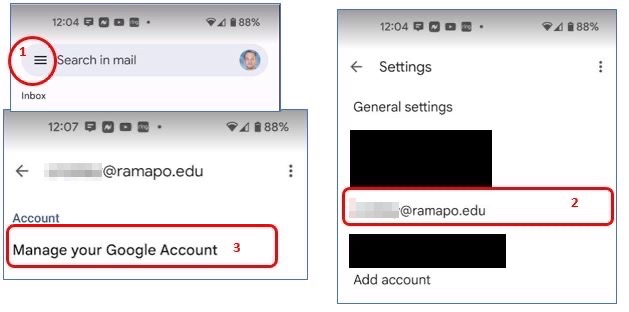
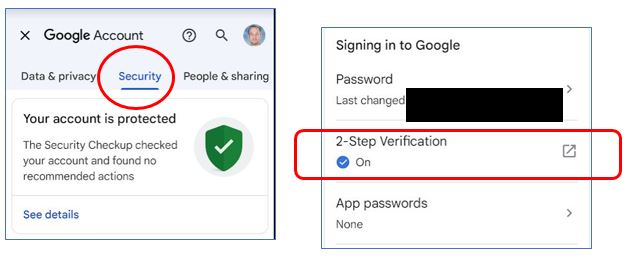
From there, tap on the Security tab. There it will show you recommended settings and other information about your account, devices, etc.
Scroll down to “Signing in to Google”, you will see a sub-selection that says “2-Step Authentication”. If it’s on already, you’re all set. If not, tap on it and it will take you to the MFA options.
Here are the options it gives you for 2FA:
- Google Prompts– This will send you a push notification to the Gmail (or other Google app) to confirm the person logging into your account is you. For those of you with VPN access this is similar to the way Duo Mobile has you approve authentication. This is the default option Google recommends. (NOTE: This may not be available if you do not have other Google apps on your device, if this is the case, it will default to the Voice or Text Message option below)
- Voice or Text Message – You can have an SMS message with a code sent to your phone, or you can receive a phone call confirming authentication.
Once you have selected your preferred method, 2FA will be enabled, and you will be all set. You may need to close and open the app to verify. You will get a confirmation email to your Ramapo Gmail account stating that 2FA is active, as well as a Google Security Alert email indicating that a new device has logged into your account.
If you require any assistance setting up 2FA, please reach out to the Ramapo ITS Help Desk by phone at 201-684-7777, by email at helpdesk@ramapo.edu, or in person on the 4th floor of the Learning Commons.
Guide for Desktop
To enable 2FA on your account from a web browser (Chrome, Safari, Firefox, etc) head to g.ramapo.edu and log into your email.
From your inbox, click on your profile icon in the top right.
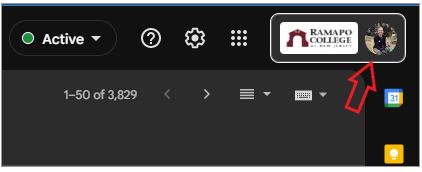
Then, click on “Manage your Google Account”:
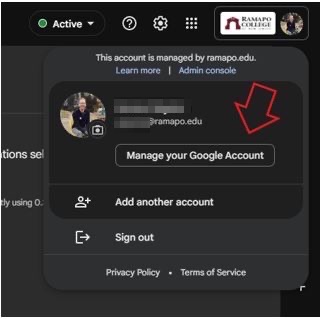
This will open a separate tab and take you to your Ramapo Google account settings.
Here, you will see a side bar menu with several options. Click on the Security . There it will show you recommended settings and other information about your account, devices, etc.
Scroll down to “Signing in to Google”, you will see a sub selection that says “2-Step Authentication”. If it’s on already, you’re all set. If not, click on it and it will take you to the MFA options.
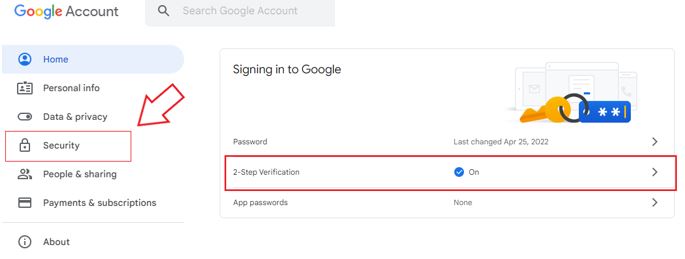
Here are the options it gives you for 2FA:
- Google Prompts– This will send you a push notification to the Gmail (or other Google app) to confirm the person logging into your account is you. For those of you with VPN access this is similar to the way Duo Mobile has you approve authentication. This is the default option Google recommends. (NOTE: This may not be available if you do not have other Google apps on your device, if this is the case, it will default to the Voice or Text Message option below)
- Voice or Text Message – You can have an SMS message with a code sent to your phone, or you can receive a phone call confirming authentication.
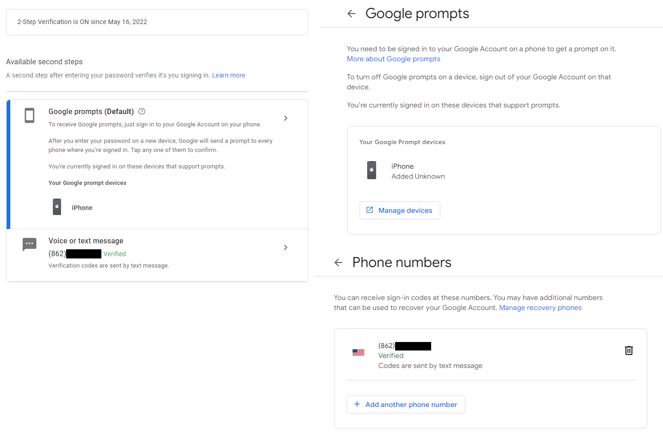
Once you have selected your preferred method, 2FA will be enabled, and you will be all set. You may need to close and open the app to verify. You will get a confirmation email to your Ramapo Gmail account stating that 2FA is active, as well as a Google Security Alert email indicating that a new device has logged into your account.
If you require any assistance setting up 2FA, please reach out to the Ramapo ITS Help Desk by phone at 201-684-7777, by email at helpdesk@ramapo.edu, or in person on the 4th floor of the Learning Commons.