- About Ramapo
- Academics
- Admissions & Aid
- Student Life
- Athletics
- Alumni
- Arts & Community
- Quick Links
- Apply
- Visit
- Give
Media Services
September 27, 2023A 226
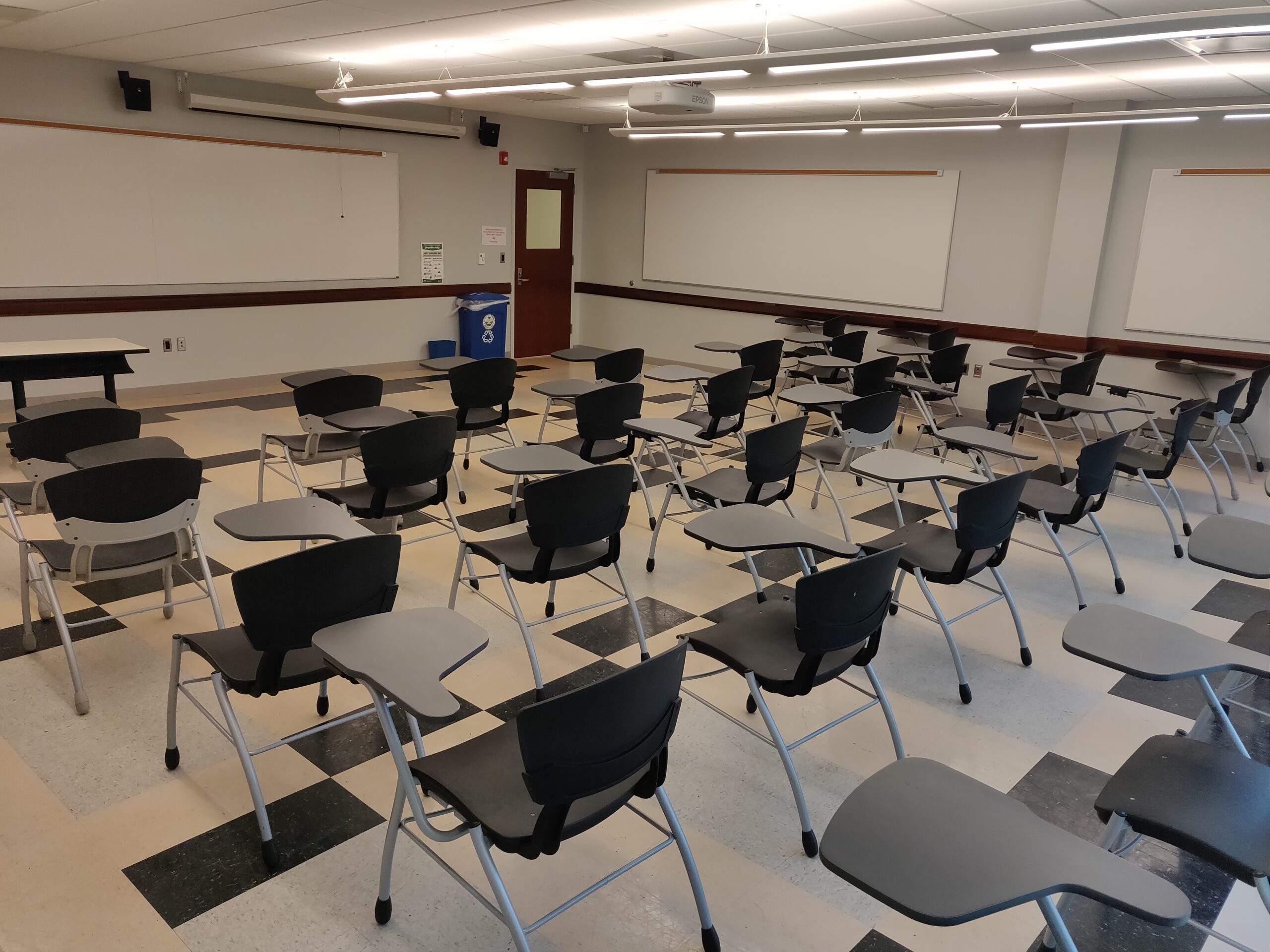
A/V Instructions – A 226
Call the IT helpdesk x7777 for further assistance.
- Locate the control panel on the wall near the screen.
- Power on the system by pressing the “On” button on the control panel.
- If using the room’s desktop computer, press “PC” on the control panel.
- If using a laptop, use the provided HDMI cable to connect the laptop to the panel.
Note: If your laptop does not support HDMI, please visit your dean’s office to inquire about a suitable adapter.- After connecting the HDMI cable, press “Laptop” on the control panel.
- Ensure that the device recognizes the room’s audio output, labeled
- “EPSON PJ (Intel® Display Audio)” for PC or
- “EPSON PJ (AMD High Definition Audio Device)” for laptop.
This can be confirmed in your device’s audio settings.
- Adjust the volume as needed using the up/down controls on the control panel.
- To switch from laptop to desktop, select the “PC” option on the control panel.
- If an input selection menu appears on the screen, use the projector remote or the buttons on the projector to select the correct input.
- When finished, power off the system by pressing the “Off” button on the control panel.
- After use, please neatly wrap the HDMI cable and return it to the designated hook mounted on the wall.
Video Tutorial
Categories: Uncategorized
September 27, 2023A 225
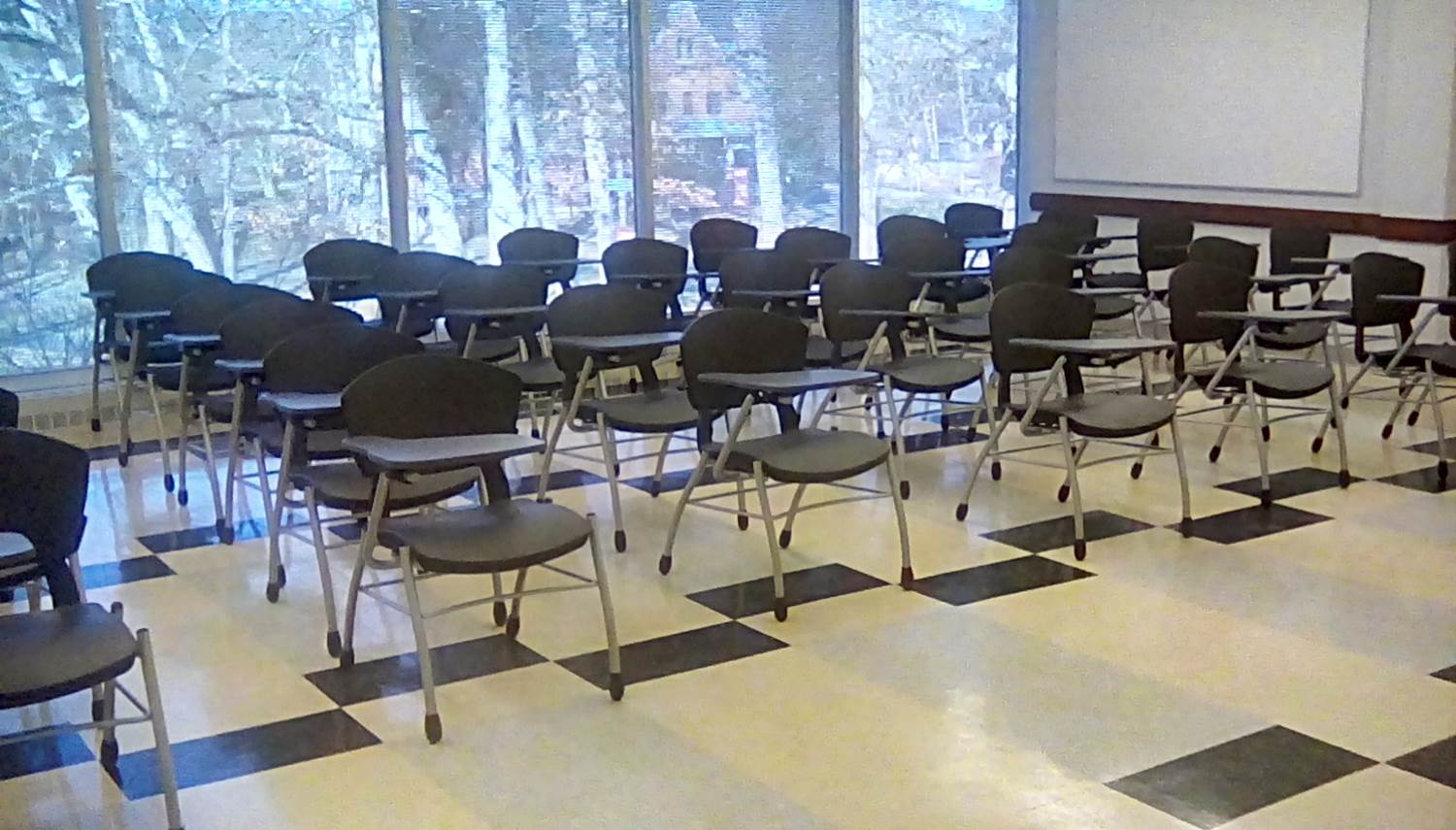
A/V Instructions – A 225
Call the IT helpdesk x7777 for further assistance.
- Locate the control panel on the wall near the screen.
- Power on the system by pressing the “On” button on the control panel.
- If using the room’s desktop computer, press “PC” on the control panel.
- If using a laptop, use the provided HDMI cable to connect the laptop to the panel.
Note: If your laptop does not support HDMI, please visit your dean’s office to inquire about a suitable adapter.- After connecting the HDMI cable, press “Laptop” on the control panel.
- Ensure that the device recognizes the room’s audio output, labeled
- “EPSON PJ (Intel® Display Audio)” for PC or
- “EPSON PJ (AMD High Definition Audio Device)” for laptop.
This can be confirmed in your device’s audio settings.
- Adjust the volume as needed using the up/down controls on the control panel.
- To switch from laptop to desktop, select the “PC” option on the control panel.
- If an input selection menu appears on the screen, use the projector remote or the buttons on the projector to select the correct input.
- When finished, power off the system by pressing the “Off” button on the control panel.
- After use, please neatly wrap the HDMI cable and return it to the designated hook mounted on the wall.
Video Tutorial
Categories: Uncategorized
September 27, 2023A 223
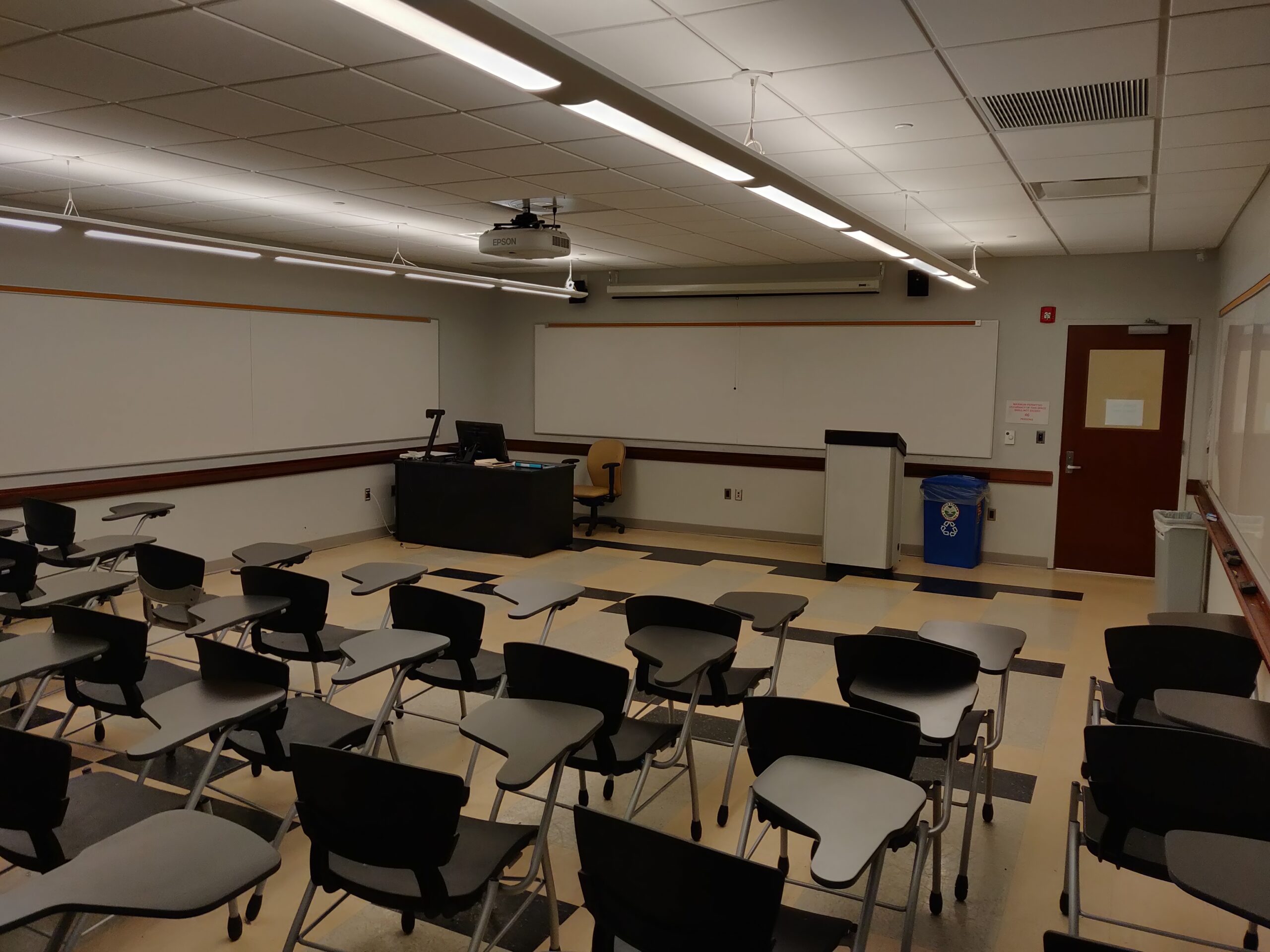
Using A/V for the desktop or your laptop
- Turn on and log into the Desktop PC or connect your laptop with the cable provided
- Select PC or Laptop on the control panel
- Increase the volume using the controls on the computer and/or the control panel.
If no image appears make sure that the computer is on.
To show a DVD from the desktop computer:
- Open the DVD drive and insert the DVD.
- Go to File Manager on taskbar on the bottom of the screen.
- Right click on the DVD drive.
- Choose “Play with VLC media player.”
For immediate assistance call the helpdesk at 201.684.7777. If you receive no asnwer, send an email to heldesk@ramapo.edu.
Categories: Uncategorized
September 27, 2023A 221
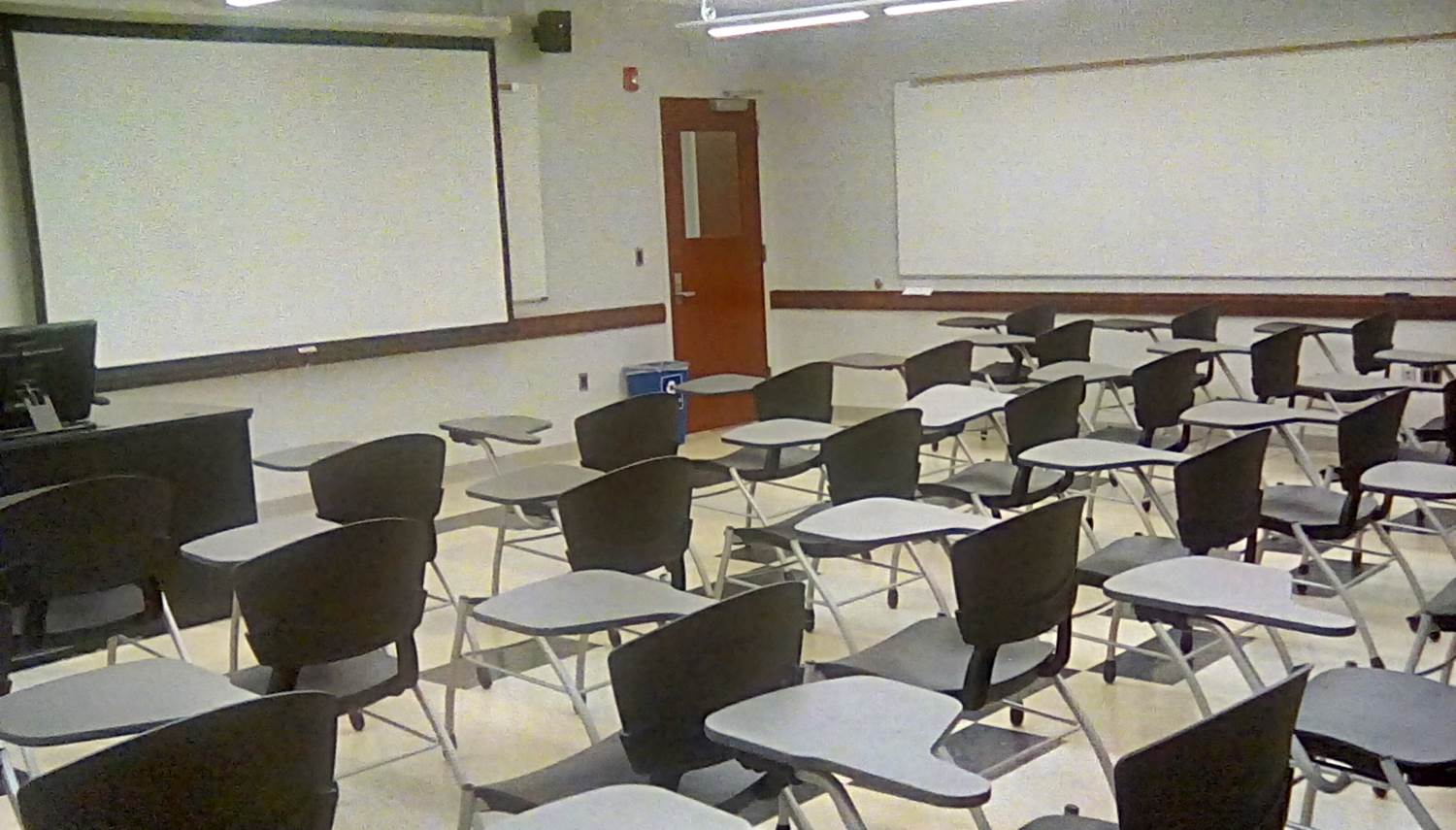
A/V Instructions – A 221
Call the IT helpdesk x7777 for further assistance.
- Locate the control panel on the wall near the screen.
- Power on the system by pressing the “On” button on the control panel.
- If using the room’s desktop computer, press “PC” on the control panel.
- If using a laptop, use the provided HDMI cable to connect the laptop to the panel.
Note: If your laptop does not support HDMI, please visit your dean’s office to inquire about a suitable adapter.- After connecting the HDMI cable, press “Laptop” on the control panel.
- Ensure that the device recognizes the room’s audio output, labeled
- “EPSON PJ (Intel® Display Audio)” for PC or
- “EPSON PJ (AMD High Definition Audio Device)” for laptop.
This can be confirmed in your device’s audio settings.
- Adjust the volume as needed using the up/down controls on the control panel.
- To switch from laptop to desktop, select the “PC” option on the control panel.
- If an input selection menu appears on the screen, use the projector remote or the buttons on the projector to select the correct input.
- When finished, power off the system by pressing the “Off” button on the control panel.
- After use, please neatly wrap the HDMI cable and return it to the designated hook mounted on the wall.
Video Tutorial
Categories: Uncategorized
September 27, 2023A 220
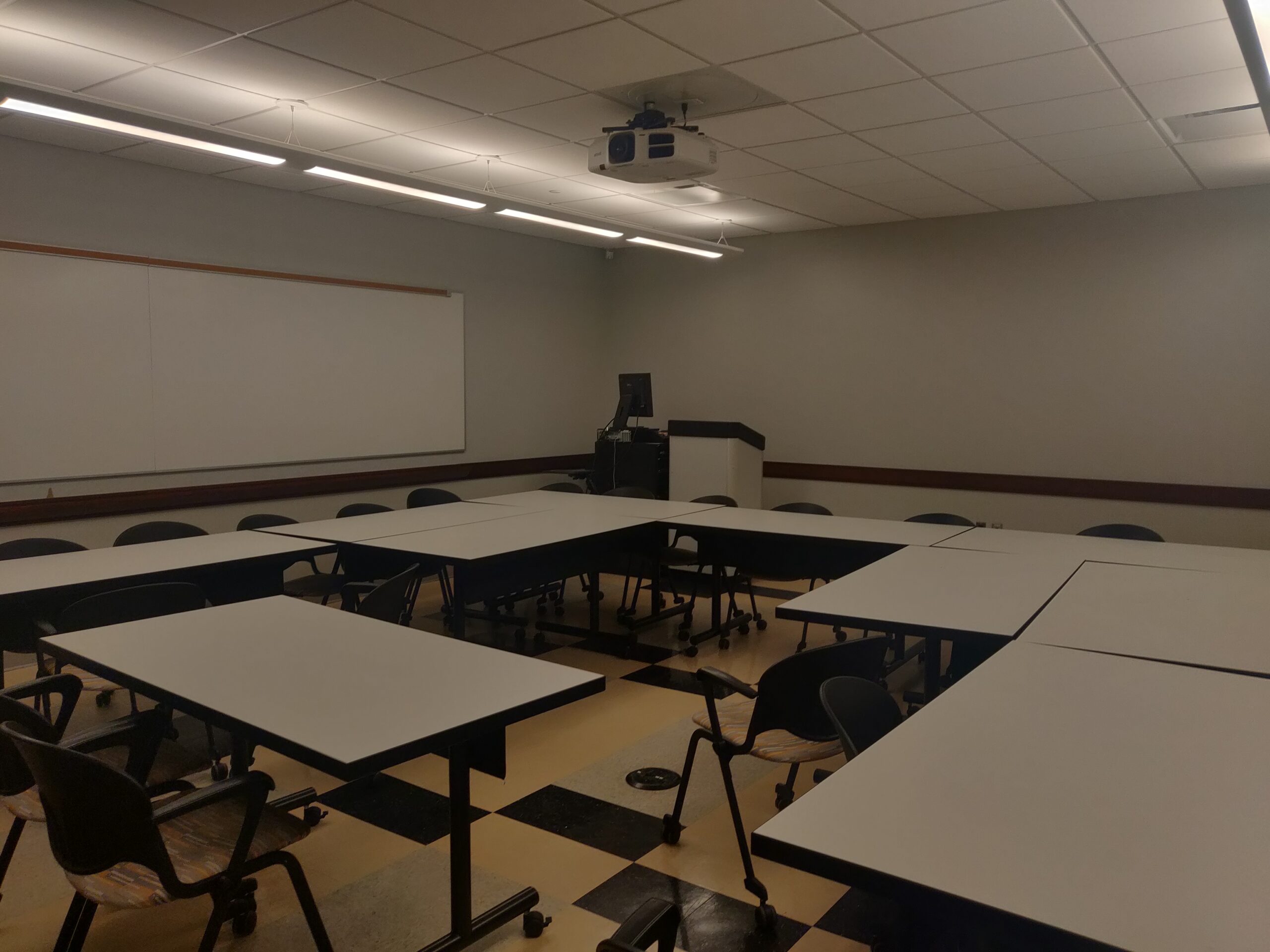
A/V Instructions – A 220
Call the IT helpdesk x7777 for further assistance.
- Locate the control panel on the wall near the screen.
- Power on the system by pressing the “On” button on the control panel.
- If using the room’s desktop computer, press “PC” on the control panel.
- If using a laptop, use the provided HDMI cable to connect the laptop to the panel.
Note: If your laptop does not support HDMI, please visit your dean’s office to inquire about a suitable adapter.- After connecting the HDMI cable, press “Laptop” on the control panel.
- Ensure that the device recognizes the room’s audio output, labeled
- “EPSON PJ (Intel® Display Audio)” for PC or
- “EPSON PJ (AMD High Definition Audio Device)” for laptop.
This can be confirmed in your device’s audio settings.
- Adjust the volume as needed using the up/down controls on the control panel.
- To switch from laptop to desktop, select the “PC” option on the control panel.
- If an input selection menu appears on the screen, use the projector remote or the buttons on the projector to select the correct input.
- When finished, power off the system by pressing the “Off” button on the control panel.
- After use, please neatly wrap the HDMI cable and return it to the designated hook mounted on the wall.
Video Tutorial
Categories: Uncategorized
September 27, 2023A 218
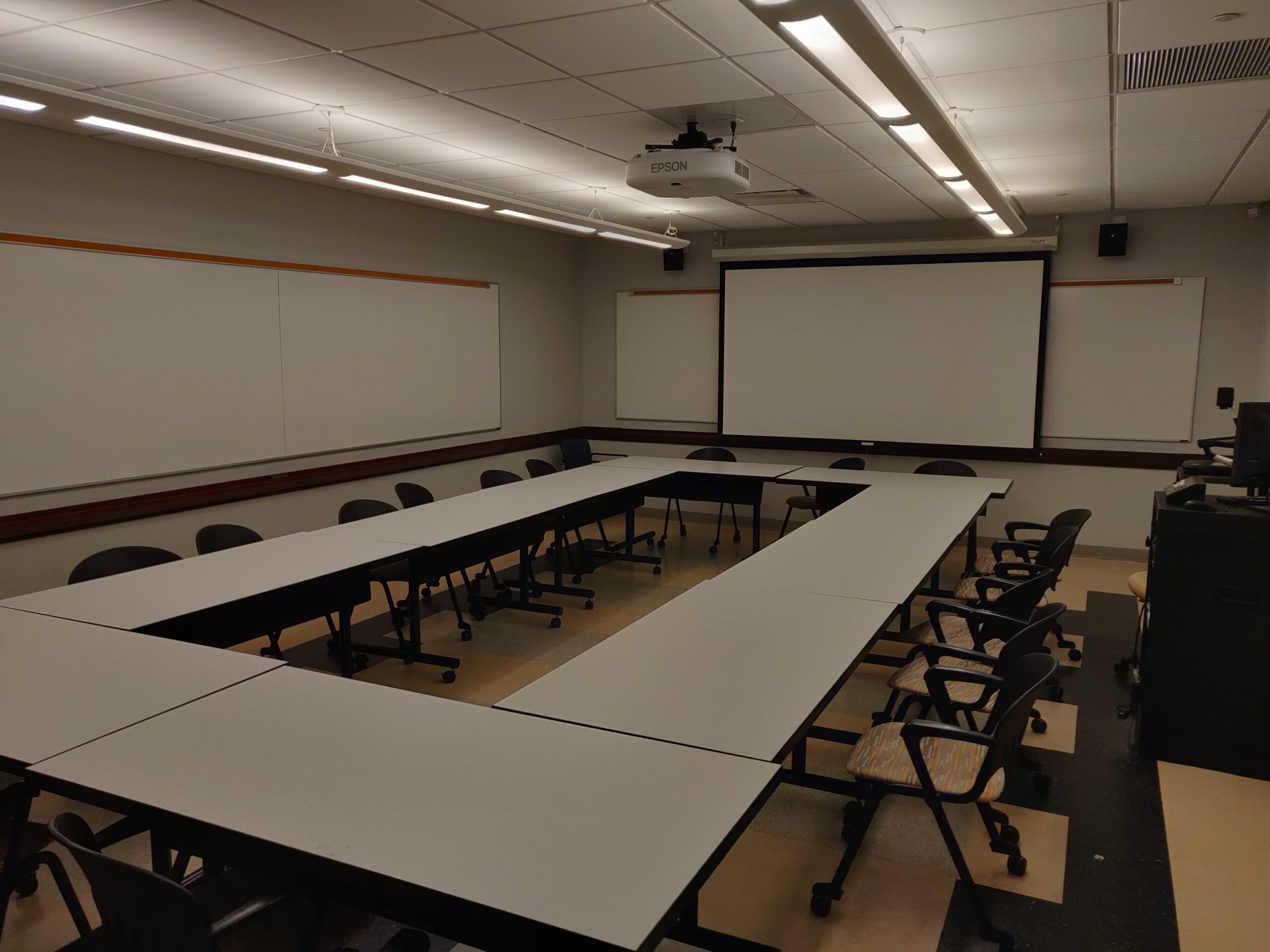
A/V Instructions – A 218
Call the IT helpdesk x7777 for further assistance.
- Locate the control panel on the wall near the screen.
- Power on the system by pressing the “On” button on the control panel.
- If using the room’s desktop computer, press “PC” on the control panel.
- If using a laptop, use the provided HDMI cable to connect the laptop to the panel.
Note: If your laptop does not support HDMI, please visit your dean’s office to inquire about a suitable adapter.- After connecting the HDMI cable, press “Laptop” on the control panel.
- Ensure that the device recognizes the room’s audio output, labeled
- “EPSON PJ (Intel® Display Audio)” for PC or
- “EPSON PJ (AMD High Definition Audio Device)” for laptop.
This can be confirmed in your device’s audio settings.
- Adjust the volume as needed using the up/down controls on the control panel.
- To switch from laptop to desktop, select the “PC” option on the control panel.
- If an input selection menu appears on the screen, use the projector remote or the buttons on the projector to select the correct input.
- When finished, power off the system by pressing the “Off” button on the control panel.
- After use, please neatly wrap the HDMI cable and return it to the designated hook mounted on the wall.
Video Tutorial
Categories: Uncategorized
September 26, 2023A 108/109
A/V Instructions – A 108
Call the IT helpdesk x7777 for further assistance.
- Locate the control panel on the wall near the screen.
- Power on the system by pressing the “On” button on the control panel.
- If using the room’s desktop computer, press “PC” on the control panel.
- If using a laptop, use the provided HDMI cable to connect the laptop to the panel.
Note: If your laptop does not support HDMI, please visit your dean’s office to inquire about a suitable adapter.- After connecting the HDMI cable, press “Laptop” on the control panel.
- Ensure that the device recognizes the room’s audio output, labeled
- “EPSON PJ (Intel® Display Audio)” for PC or
- “EPSON PJ (AMD High Definition Audio Device)” for laptop.
This can be confirmed in your device’s audio settings.
- Adjust the volume as needed using the up/down controls on the control panel.
- To switch from laptop to desktop, select the “PC” option on the control panel.
- If an input selection menu appears on the screen, use the projector remote or the buttons on the projector to select the correct input.
- When finished, power off the system by pressing the “Off” button on the control panel.
- After use, please neatly wrap the HDMI cable and return it to the designated hook mounted on the wall.
Video Tutorial
Categories: Uncategorized
September 26, 2023A 107
A/V Instructions – a 107
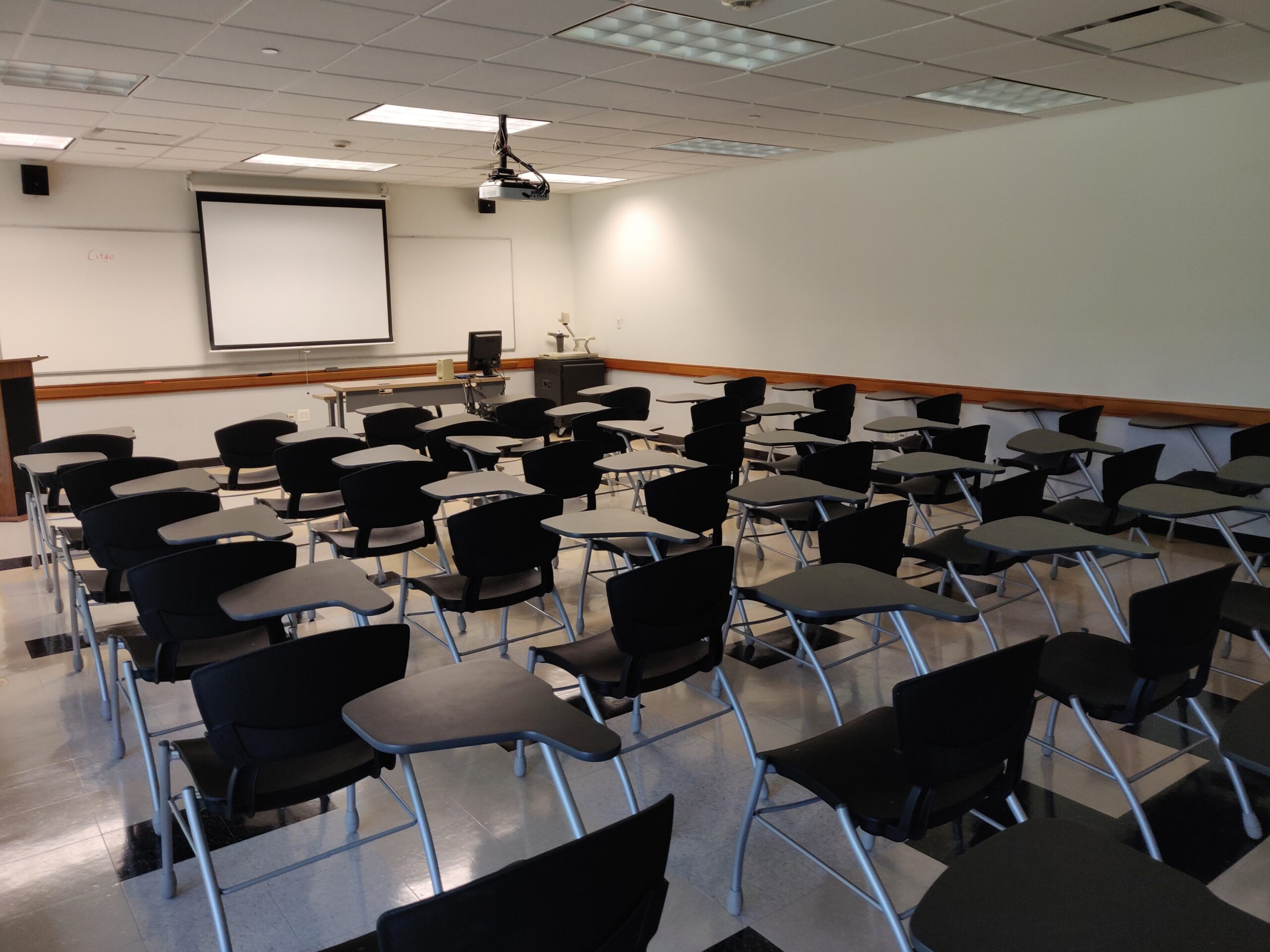
Call the IT helpdesk x7777 for further assistance.
- Locate the control panel on the wall near the screen.
- Power on the system by pressing the “On” button on the control panel.
- If using the room’s desktop computer, press “PC” on the control panel.
- If using a laptop, use the provided HDMI cable to connect the laptop to the panel.
Note: If your laptop does not support HDMI, please visit your dean’s office to inquire about a suitable adapter.- After connecting the HDMI cable, press “Laptop” on the control panel.
- Ensure that the device recognizes the room’s audio output, labeled
- “EPSON PJ (Intel® Display Audio)” for PC or
- “EPSON PJ (AMD High Definition Audio Device)” for laptop.
This can be confirmed in your device’s audio settings.
- Adjust the volume as needed using the up/down controls on the control panel.
- To switch from laptop to desktop, select the “PC” option on the control panel.
- If an input selection menu appears on the screen, use the projector remote or the buttons on the projector to select the correct input.
- When finished, power off the system by pressing the “Off” button on the control panel.
- After use, please neatly wrap the HDMI cable and return it to the designated hook mounted on the wall.
Video Tutorial
Categories: Uncategorized
September 26, 2023A 106
A/V Instructions – A 106
Call the IT helpdesk x7777 for further assistance.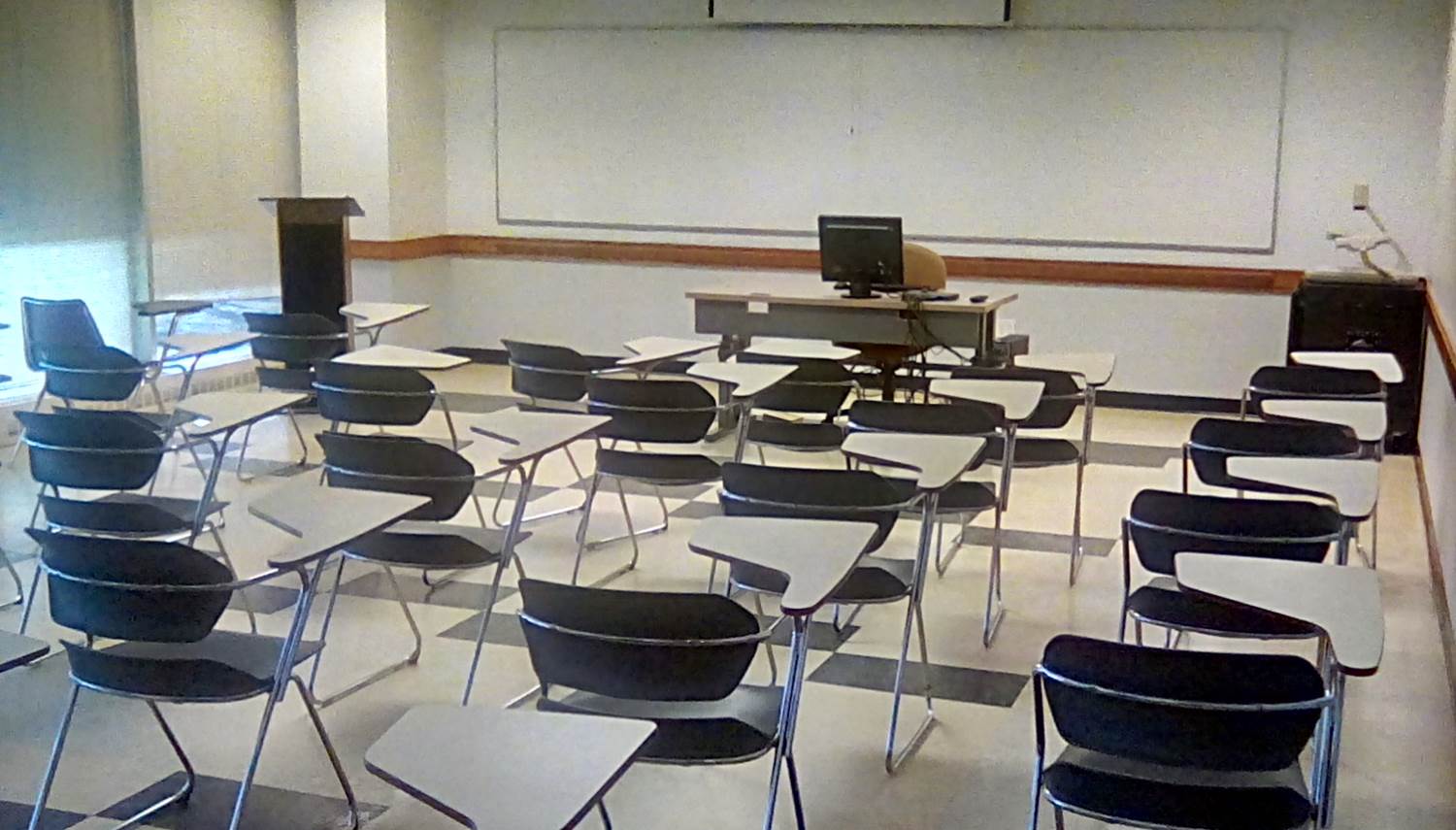
- Locate the control panel on the wall near the screen.
- Power on the system by pressing the “On” button on the control panel.
- If using the room’s desktop computer, press “PC” on the control panel.
- If using a laptop, use the provided HDMI cable to connect the laptop to the panel.
Note: If your laptop does not support HDMI, please visit your dean’s office to inquire about a suitable adapter.- After connecting the HDMI cable, press “Laptop” on the control panel.
- Ensure that the device recognizes the room’s audio output, labeled
- “EPSON PJ (Intel® Display Audio)” for PC or
- “EPSON PJ (AMD High Definition Audio Device)” for laptop.
This can be confirmed in your device’s audio settings.
- Adjust the volume as needed using the up/down controls on the control panel.
- To switch from laptop to desktop, select the “PC” option on the control panel.
- If an input selection menu appears on the screen, use the projector remote or the buttons on the projector to select the correct input.
- When finished, power off the system by pressing the “Off” button on the control panel.
- After use, please neatly wrap the HDMI cable and return it to the designated hook mounted on the wall.
Video Tutorial
Categories: Uncategorized
September 26, 2023A 105
A/V Instructions – A 105
Call the IT helpdesk x7777 for further assistance.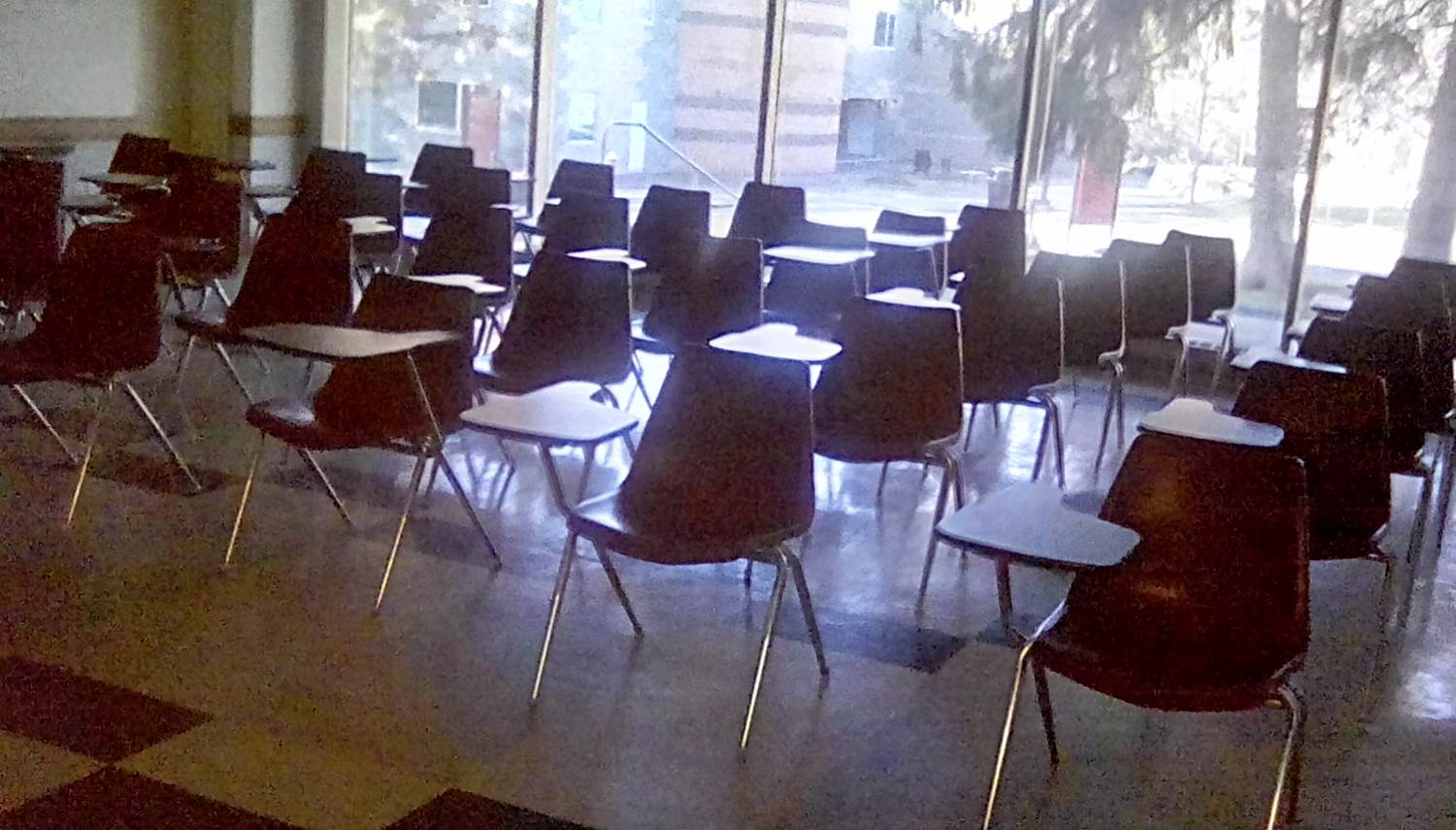
- Locate the control panel on the wall near the screen.
- Power on the system by pressing the “On” button on the control panel.
- If using the room’s desktop computer, press “PC” on the control panel.
- If using a laptop, use the provided HDMI cable to connect the laptop to the panel.
Note: If your laptop does not support HDMI, please visit your dean’s office to inquire about a suitable adapter.- After connecting the HDMI cable, press “Laptop” on the control panel.
- Ensure that the device recognizes the room’s audio output, labeled
- “EPSON PJ (Intel® Display Audio)” for PC or
- “EPSON PJ (AMD High Definition Audio Device)” for laptop.
This can be confirmed in your device’s audio settings.
- Adjust the volume as needed using the up/down controls on the control panel.
- To switch from laptop to desktop, select the “PC” option on the control panel.
- If an input selection menu appears on the screen, use the projector remote or the buttons on the projector to select the correct input.
- When finished, power off the system by pressing the “Off” button on the control panel.
- After use, please neatly wrap the HDMI cable and return it to the designated hook mounted on the wall.
Video Tutorial
Categories: Uncategorized

505 Ramapo Valley Road
Mahwah, NJ 07430
p: 201-684-7500
e: information@ramapo.edu
Copyright ©2026 Ramapo College Of New Jersey | Statements And Policies | Accessibility | Contact Webmaster.